Add Products
You add products to Phoenix by creating or updating them in Shopify and synchronizing them into your store. This process ensures that product titles, pricing, and shipping settings stay consistent across platforms and are ready to use in checkouts, upsells, and subscriptions.
Use Cases
The following use cases show how product synchronization helps you manage your store efficiently.
Adding New Products to Your Store
You add new products in Shopify and make them available in Phoenix without recreating them manually.
Verifying Product Synchronization
You confirm that product details such as pricing, titles, and shipping settings match Shopify after they are synced to Phoenix.
Troubleshooting Missing Products
You manually import products when a new or updated item does not appear automatically in Phoenix.
To add products to Phoenix:
-
Log in to your Phoenix Dashboard.
-
In the left navigation menu, go to eCommerce.
-
Click Products.
-
If you manage multiple stores, select the store you are working with and click View.
All product creation and updates must be completed in Shopify first. Once saved in Shopify, products are automatically pushed to Phoenix.
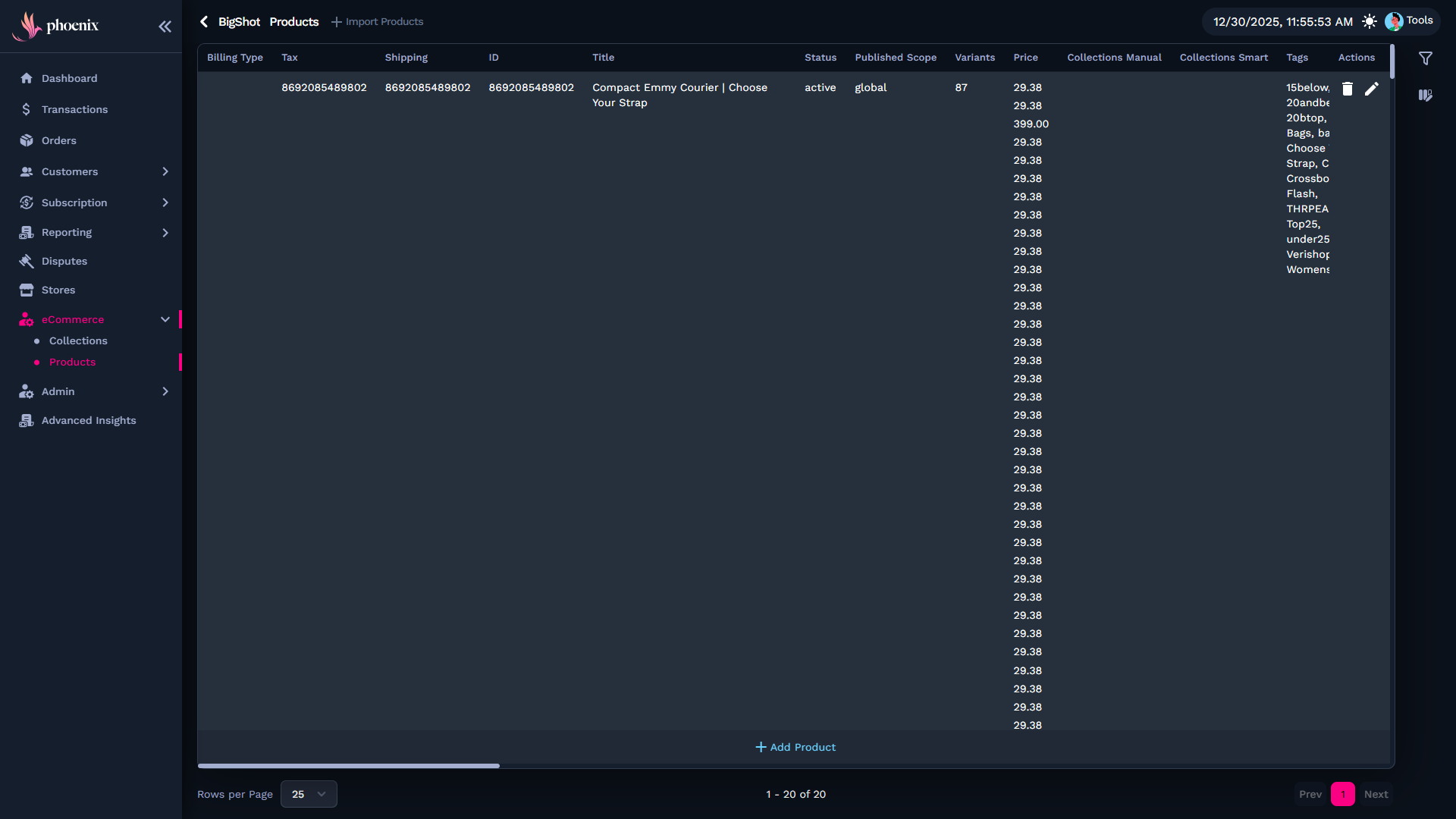
Import Products From Shopify (If Needed)
If a product added or updated in Shopify does not appear in the product list, you can manually trigger a synchronization from the Products page.
Click + Import Products to sync the latest products from Shopify and update your store automatically.

Verify Product Details
After products are imported, review them directly in Phoenix to confirm accuracy:
-
Confirm the product title matches Shopify.
-
Verify the price is correct.
-
Check that shipping settings align with Shopify.
Reviewing these details helps ensure accurate billing and a consistent checkout experience.
Related Guides
To continue configuring products and store settings, review these guides: